
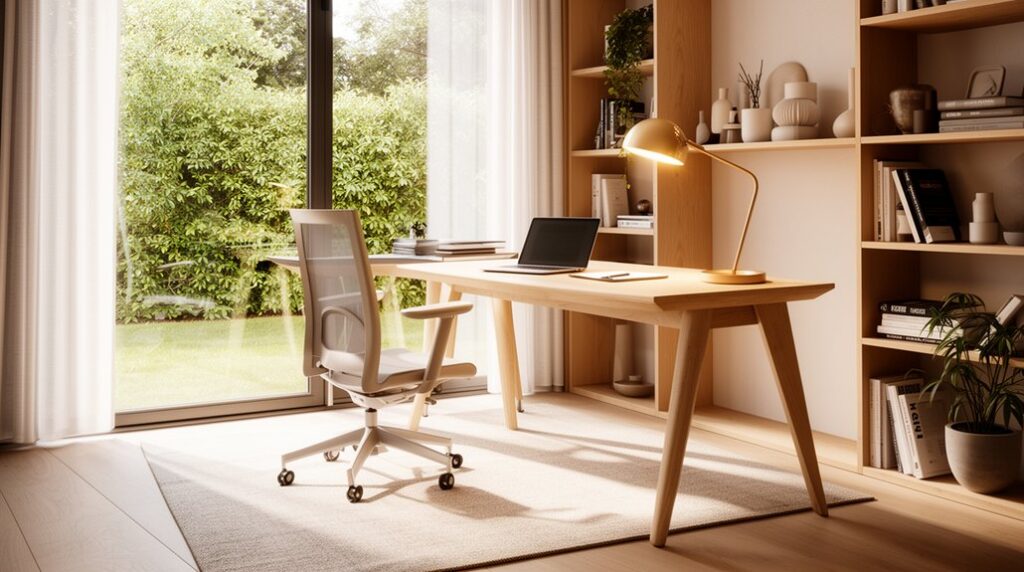
Start by measuring your room, noting doors, windows, and outlets, then place your desk to catch natural light without screen glare. Stick to a calm three-tone palette (warm neutral, dark anchor, muted accent) and choose a slim desk with a cable tray plus an adjustable chair. Mount your monitor at eye level, hide cords in raceways, and add floating shelves for vertical storage. Layer lighting for focus and calls, then reset your desk in five minutes daily—next up, you’ll see exactly how.
Key Takeaways
- Measure the room, plan a functional layout, and maximize vertical storage with shelves, peg rails, and labeled bins to keep surfaces clear.
- Choose a calm, cohesive palette: neutral base, one dark anchor, and one muted accent, using mostly matte finishes and simple textures.
- Build an ergonomic setup with an adjustable chair, monitor at eye level, and keyboard aligned for neutral wrists and 90° elbows.
- Use layered lighting—ambient, task, and soft front light for calls—keeping color temperature consistent for comfort and a polished look.
- Hide and label cables with trays, sleeves, and mounted power strips, and follow a 5-minute daily reset to maintain a clutter-free desk.
Map Your Home Office Layout First
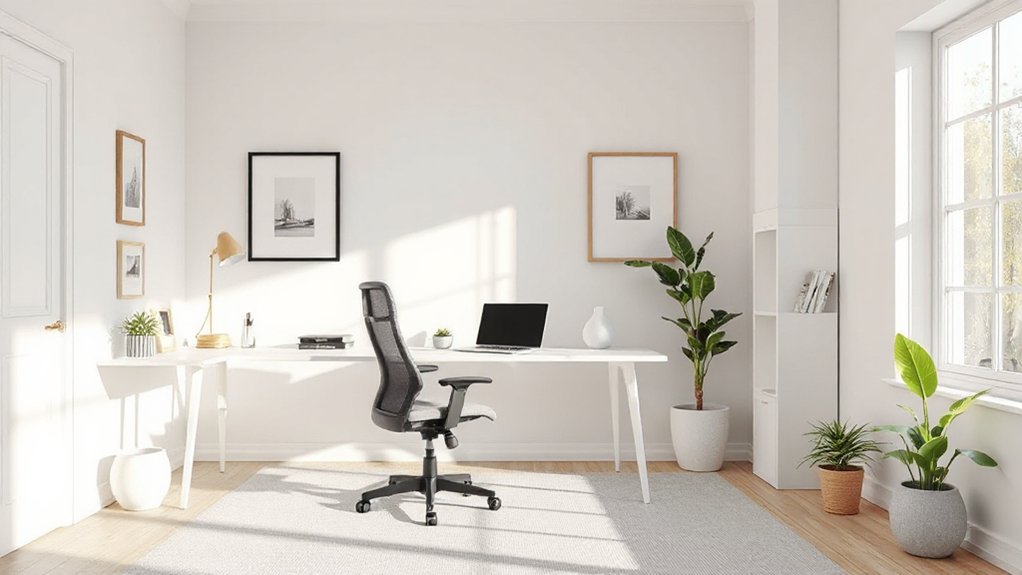
Before you buy a desk or start moving furniture, map your home office layout so every inch has a purpose. Measure the room, note door swings, windows, outlets, and HVAC vents, then sketch a simple floor plan. Decide what you need within arm’s reach: laptop, monitor, task light, and a landing spot for notebooks.
Prioritize Desk positioning: face natural light to reduce eye strain, but angle the screen to avoid glare. Keep your chair’s clearance zone open and route cables along walls, not walkways.
Plan vertical storage where you’ll actually use it—shelves over the printer, hooks near the door for bags. Leave one empty surface for quick resets and tidy focus.
Pick a Clean, Modern Home Office Palette
If you want your space to feel calm and current, lock in a clean, modern palette before you choose décor. Start with a neutral base—warm white, soft greige, or light taupe—so screens, paper, and storage look tidy.
Then pick one dark anchor (charcoal, ink navy, or matte black) to add contrast in frames, hardware, or shelving.
Keep color schemes to three tones: base, anchor, and one muted color like sage, clay, or dusty blue.
Use finishes that read modern: matte paint, brushed metal, pale oak, or blackened steel.
Limit accent accents to one or two repeatable spots, such as a lamp shade, art print, or textiles, so the room feels intentional, not busy.
Test swatches in daylight and lamp light.
Choose a Modern Home Office Desk That Fits
Once you’ve nailed down your palette, choose a modern desk that fits both your room and your workflow, not just your style.
Measure wall length, door swings, and walking clearance, then pick a depth that matches your setup: 24 inches for laptop-only, 30 inches for dual monitors and note-taking.
If you’re tight on space, look for slim trestle legs or a wall-mounted option that still hides cables.
Prioritize a clean surface with smart Desk organization: built-in grommets, a cable tray, and a shallow drawer for daily tools.
Add Ergonomic accessories like a monitor riser, under-desk keyboard tray, and a wrist rest so your screen and hands land where you need them.
Choose durable laminate, bamboo, or powder-coated steel for a modern finish.
Add an Ergonomic Chair for Daily Comfort
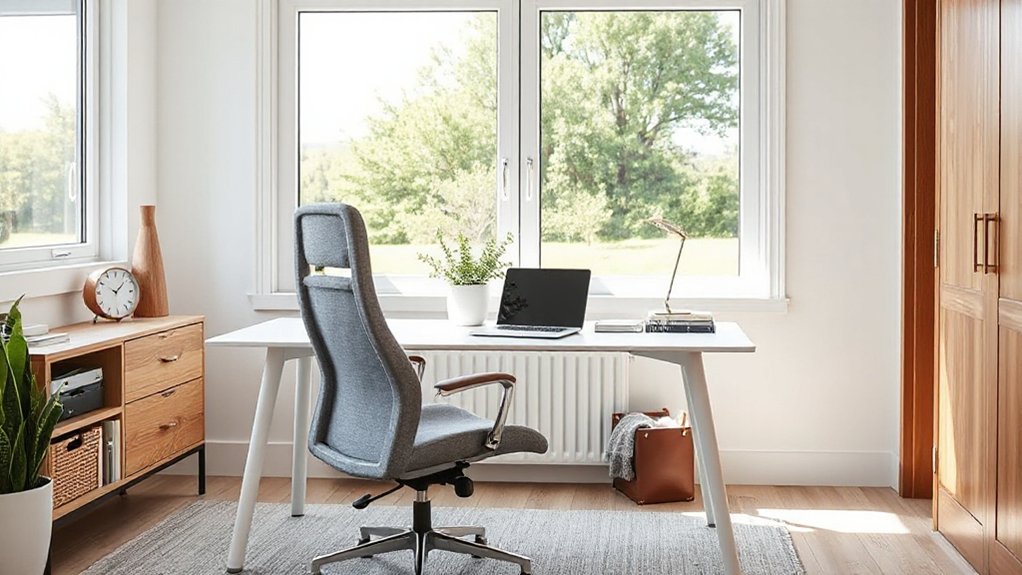
A modern desk sets the stage, but your chair determines how long you can work comfortably without feeling it in your neck or lower back. Prioritize ergonomic seating with adjustable seat height so your feet rest flat and your knees sit near 90 degrees.
Choose a contoured backrest with firm lumbar posture support, and set it to meet the curve of your lower spine.
Opt for 3D or 4D armrests so your shoulders stay relaxed while typing.
A waterfall seat edge reduces thigh pressure during long sessions, and breathable mesh keeps the look light and current.
If you alternate tasks, add a headrest or a forward-tilt option for focused screen work.
Test return policies before committing.
Set Up Clean Cable Management Fast
Where do you start when your desk looks great but the cords turn it into visual noise? First, unplug everything and group devices by zone: computer, lighting, audio, charging. Keep only the cables you actually use, then label both ends with small tags so swaps don’t derail your setup.
Mount a slim power strip under the desk with adhesive screws, and route one main cord down a rear leg. Use Velcro ties for bundles, not zip ties, so you can adjust fast.
Add a grommet or stick-on pass-through to drop cables straight down. Replace daily charging clutter with wireless chargers.
Finish the look with decorative cable covers that match your wall or desk finish. Done.
Build Modern Home Office Storage That Hides Clutter
Clean cable runs make your desk look sharper, but loose papers, peripherals, and random supplies can still wreck the vibe. Fix it with modern storage that keeps essentials close yet out of sight. Start with a low credenza or rolling cabinet in matte oak or powder-coated metal; they’re on-trend and read as stylish storage, not office junk.
Add drawer inserts to separate chargers, adapters, and pens, then label the underside so you can grab fast without digging. Use magazine files for active projects and stash them vertically in a closed bin.
Choose a desk with hidden compartments for notebooks and small tech, or retrofit a slim under-shelf drawer. Finish with matching lidded boxes on a shelf to unify colors and hide visual noise.
Keep Your Home Office Desktop Minimal
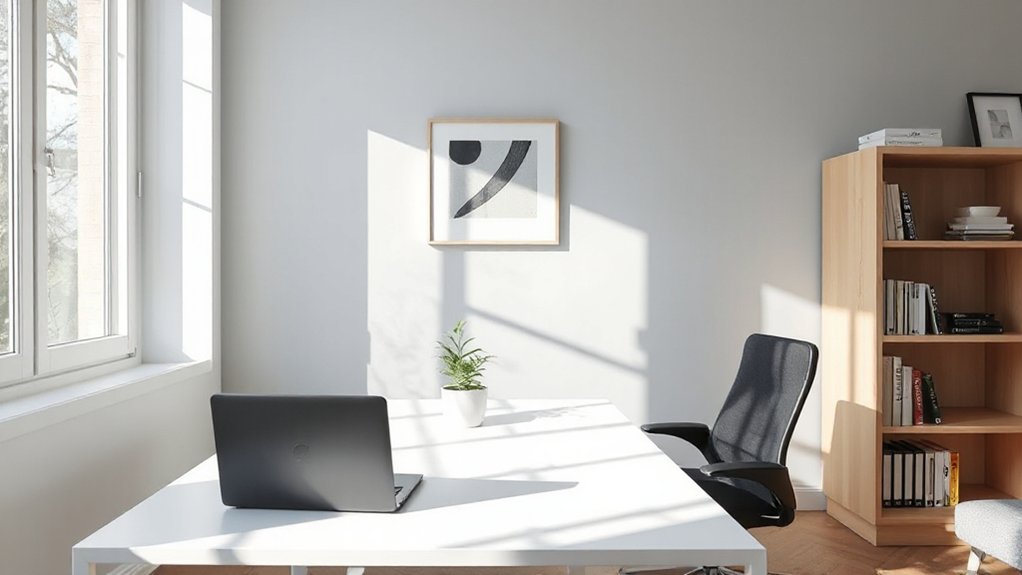
Two rules keep your desktop looking modern: leave only what you touch daily, and give everything else a home. Park your laptop, keyboard, mouse, and one notebook in a consistent layout, then clear the rest after each session. Route cables through an under-desk tray and use a single docking station to cut visual noise.
Limit Decor accessories to one intentional piece, like a slim tray or a small planter, so the surface reads calm, not styled. Match organizers to your color schemes—matte black, warm white, or light oak keeps a clean, contemporary line.
Corral pens and chargers in a lidded box, and keep loose papers in a vertical file, not a stack. Leave a 6-inch buffer of empty space to protect focus.
Upgrade Lighting for a Modern Home Office
Upgrade your home office lighting by layering ambient, task, and accent sources so the room feels balanced on calls and easier on your eyes.
Add smart task lighting—like an adjustable LED desk lamp or monitor light bar—with dimming and color-temperature control to match focus hours and late-night work.
You’ll cut glare, improve screen comfort, and get a cleaner, modern look with minimal clutter.
Layered Lighting Essentials
Although a single overhead fixture can technically light the room, it rarely supports focused work or a modern look—layered lighting does.
Start with an ambient glow that fills the space evenly: a flush-mount, slim pendant, or indirect cove lighting keeps shadows soft and ceilings visually higher.
Next, add task layering around your work zones without cluttering surfaces—think wall sconces flanking the desk, a picture light above shelving, or a floor lamp aimed at your chair for reading.
Finish with accent light to sharpen the room’s architecture: LED strip under floating shelves, a small uplight behind a plant, or a directional spotlight on art.
Keep color temperature consistent (around 3000–3500K) for a cohesive, modern finish.
Smart Task Lighting
Where does your lighting fall short most often—on video calls, during late-night deep work, or when you’re bouncing between screens and paperwork? Upgrade with smart task lighting that adapts instantly.
Choose a desk lamp with tunable white (2700K–5000K) so you can warm things up for evenings and switch to crisp daylight for focus.
Aim for 400–800 lumens at the work surface, and use a shaded, directional head for glare-free task illumination.
Add Smart lighting controls: set scenes like “Focus,” “Call,” and “Wind Down,” then trigger them by voice, shortcut, or schedule.
Position the lamp on your non-dominant side to cut shadows, and dim to match your monitor so your eyes don’t fatigue.
Dial In Monitor Height and Keyboard Placement
Set your monitor so the top third of the screen sits at eye level, and keep it an arm’s length away to cut neck strain.
Place your keyboard low enough that your elbows stay near 90 degrees and your wrists remain straight, not bent up or down.
If you’re using a laptop, pair it with a stand and an external keyboard so your screen and hands both land in an ergonomic sweet spot.
Set Monitor Eye Level
If you want fewer neck aches and better focus, start by dialing in your monitor height and keyboard placement. Set the top third of your screen at or slightly below eye level, so you’re looking straight ahead, not down.
Keep the monitor about an arm’s length away; adjust closer only if text stays crisp without squinting.
Tilt the display back 10–20 degrees to reduce glare from overhead lighting and windows, then center it directly in front of you to avoid twisting.
Use a slim monitor arm or low-profile riser for clean lines and easy tweaks.
These Monitor ergonomics upgrades protect your eye health and keep your setup looking modern and intentional.
Position Keyboard For Neutral Wrists
Once your monitor sits at the right eye level, bring your keyboard into sync so your wrists stay straight and relaxed all day.
Start with keyboard positioning: center the spacebar with your body, and keep the keys close enough that your elbows rest at about 90 degrees.
Aim for neutral wrist alignment by keeping forearms parallel to the floor and avoiding any bend up, down, or sideways.
If your desk is high, lower the chair and add a footrest so your shoulders don’t hike.
Skip bulky wrist rests while typing; use them only between bursts.
Consider a low-profile or split keyboard if you feel ulnar deviation.
Tilt the keyboard flat or slightly negative, and keep the mouse at the same height, tight to your right or left.
Use Shelves and Wall Space the Modern Way
Because desk space disappears fast, you’ll get more done by pushing storage upward with modern shelving and smart wall systems. Install floating shelves above your monitor line for books, bins, and backup drives, keeping daily tools within arm’s reach.
Add wall mounted storage like peg rails, slim cabinets, and magnetic strips to park headphones, cables, and adapters without tangles. Use matching containers so categories stay obvious: “inbox,” “reference,” “tech,” “supplies.”
Mount a small whiteboard or pinboard near your task light for quick checklists, then clear it weekly.
Keep the lowest shelf 18–24 inches above the desk to avoid head bumps.
Route power up a cable raceway so the wall looks tidy and intentional.
Add Modern Home Office Decor, Not Distractions
While modern decor can make your office feel finished, it should also earn its keep by supporting focus and comfort. Choose Decor accents that add function: a warm task-friendly lamp, a simple desk mat, or a neutral rug that softens sound underfoot. Keep your palette tight—two neutrals plus one muted color—so the room reads calm and cohesive.
Skip distracting patterns on large surfaces like curtains, rugs, or statement walls; they compete with your screen and paperwork. Instead, add interest through texture: matte ceramics, brushed metal, light wood, or boucle. Limit art to one or two pieces with clean frames, and hang them at eye level to reduce visual noise.
Finish with one low-maintenance plant for softness and better air feel, not clutter.
Create a Tidy Tech Setup for Video Calls
For sharper video calls, you’ll want a tech setup that looks intentional, not improvised: route and bundle cables with clips, sleeves, and an under-desk tray so nothing creeps into frame.
Set your camera at eye level and pair it with soft, front-facing light (a small ring light or window light) to avoid harsh shadows and unflattering angles.
Lock in clean audio and a controlled background by using a headset or USB mic, muting notifications, and keeping your backdrop simple or using a subtle blur.
Cable Management Essentials
If you want your video-call setup to look polished and run reliably, you can’t ignore cable management. Start by mapping every device to one power strip, then label both ends of each cable so swaps take seconds.
Use cable organization tools that match your desk: adhesive clips under the edge, a cable tray beneath, and Velcro ties for serviceable bundles (skip permanent zip ties). For cord concealment, route runs along legs or baseboards with low-profile raceways and keep slack behind a monitor riser or in a lidded cable box.
Separate power and data lines to reduce tangles and interference. Leave a “maintenance loop” near ports so you can unplug fast without yanking.
Finish by wiping visible cords and hiding adapters off the desktop.
Camera And Lighting Setup
Clean cable runs set the stage; now make your camera and lighting look intentional and perform consistently on every call. Mount your webcam at eye level, centered above your main monitor, and use a slim riser or arm so it doesn’t crowd your desk.
Dial in camera angles by keeping the lens slightly above your eyes and tilting down just a touch to avoid nostril shots and double chins.
For lighting techniques, start with soft, front-facing light: place a small key light or ring light 45 degrees off-center and diffuse it to prevent harsh shine.
Balance it with ambient desk lamp glow, then match color temperature across bulbs (around 4000–5000K) for a modern, natural look.
Hide power bricks in a tray and label each plug.
Audio And Background Control
Once your camera and lights look dialed in, lock down your audio and background so every call sounds crisp and looks distraction-free.
Start with a USB mic on a small desk stand, placed 6–10 inches from your mouth, and keep gain low to avoid room echo. Use background noise reduction in your meeting app, but don’t rely on it alone.
Add simple soundproofing techniques: a thick rug, curtains, and a fabric wall panel behind your monitor to tame reflections.
Route cables through an under-desk tray, then hide the mic cable with adhesive clips.
Set a dedicated “call zone” with a clean shelf, neutral art, or a foldable backdrop.
Finally, silence notifications and switch HVAC fans off during important calls.
Maintain Your Clean Home Office in 5 Minutes Daily
While your inbox fills and meetings stack up, a five-minute end-of-day reset keeps your home office photo-ready without turning into a weekend project. Start with Daily decluttering: toss trash, return mugs, and file loose papers into one “inbox” tray.
Next, do Routine organization by resetting your desk to a default layout—laptop centered, notebook stacked, pens capped in a cup. Wipe the desktop and keyboard with a microfiber cloth, then coil chargers into a cable box or clip.
Set tomorrow’s top task on a sticky note or digital widget, so your morning starts clean and clear. Finally, push in your chair, empty the small bin, and shut a drawer; visual calm feels instantly modern and focused.
Frequently Asked Questions
How Can I Soundproof My Home Office for Calls and Concentration?
You can soundproof your home office by sealing gaps first: add door sweeps, weatherstripping, and a draft stopper to block voice leaks.
Hang soundproof curtains over windows and even behind your desk for extra absorption.
Mount acoustic panels at ear level on the wall you face during calls, plus a ceiling panel if you’ve got echo.
Add a thick rug and a bookcase to diffuse reflections.
What’s the Best Way to Add Plants Without Increasing Dust or Pests?
You can add plants without extra dust or pests by choosing low-shedding, resilient options and controlling soil.
Worried plants will attract gnats? You won’t if you use sterile potting mix, top-dress with sand, and let soil dry slightly between waterings.
For indoor gardening, pick snake plant, pothos, or ZZ plant, and keep them in self-watering planters.
For pest prevention, quarantine new plants two weeks and wipe leaves weekly.
How Do I Create a Modern Office in a Rental Without Drilling Walls?
Create a modern rental office without drilling by using peel-and-stick hooks, Command shelves, and tension rods for art and lighting.
Lean a large mirror or framed prints on a console for a gallery feel.
Choose cohesive color schemes—warm neutrals with black accents or soft gray with oak—to keep it current.
Add decorative storage like lidded bins, modular carts, and file boxes to hide clutter.
Use a plug-in sconce and cable raceways.
Which Air Purifier Size Works Best for a Small Home Office?
For a small home office, you’ll want an air purifier rated for 1.5–2x your room’s square footage, like a 200–300 CADR unit for 100–150 sq ft.
It’ll cut through stale air like a sharp blade.
Choose HEPA with a quiet sleep mode and smart sensor.
Then keep Air purifier maintenance simple: vacuum prefilters monthly and follow a strict Filter replacement schedule (typically 6–12 months).
How Can I Improve Wi‑Fi Reliability in My Home Office Space?
Improve Wi‑Fi reliability by optimizing router placement: set it high, central, and away from walls, metal, aquariums, and microwaves.
Update firmware, switch to a less crowded channel, and use 5GHz for nearby devices.
Hardwire your desktop with Ethernet when possible.
If dead zones persist, add a Wi Fi signal extender or, better, a mesh kit.
Prioritize WPA3 security and QoS for video calls, and reboot weekly.
Conclusion
Now you’ve mapped your layout, nailed a crisp palette, and chosen a desk-and-chair combo that supports long sessions. You’ve hidden cables, used vertical storage, and kept decor intentional, so the room feels modern—not busy. Your tech is camera-ready, and your surfaces stay clear with a quick daily reset. Why work in chaos when five minutes can protect that clean look? Stick to your system, and your home office will stay sharp, functional, and calm.